

From the CollectHolo blog
Gundam TCG Tracker: Cards, Parallels and Set Progress
Build a Gundam collection record around the cards and printings you actually own. Use CollectHolo to browse sets, separate parallels, follow completion and keep a wishlist.
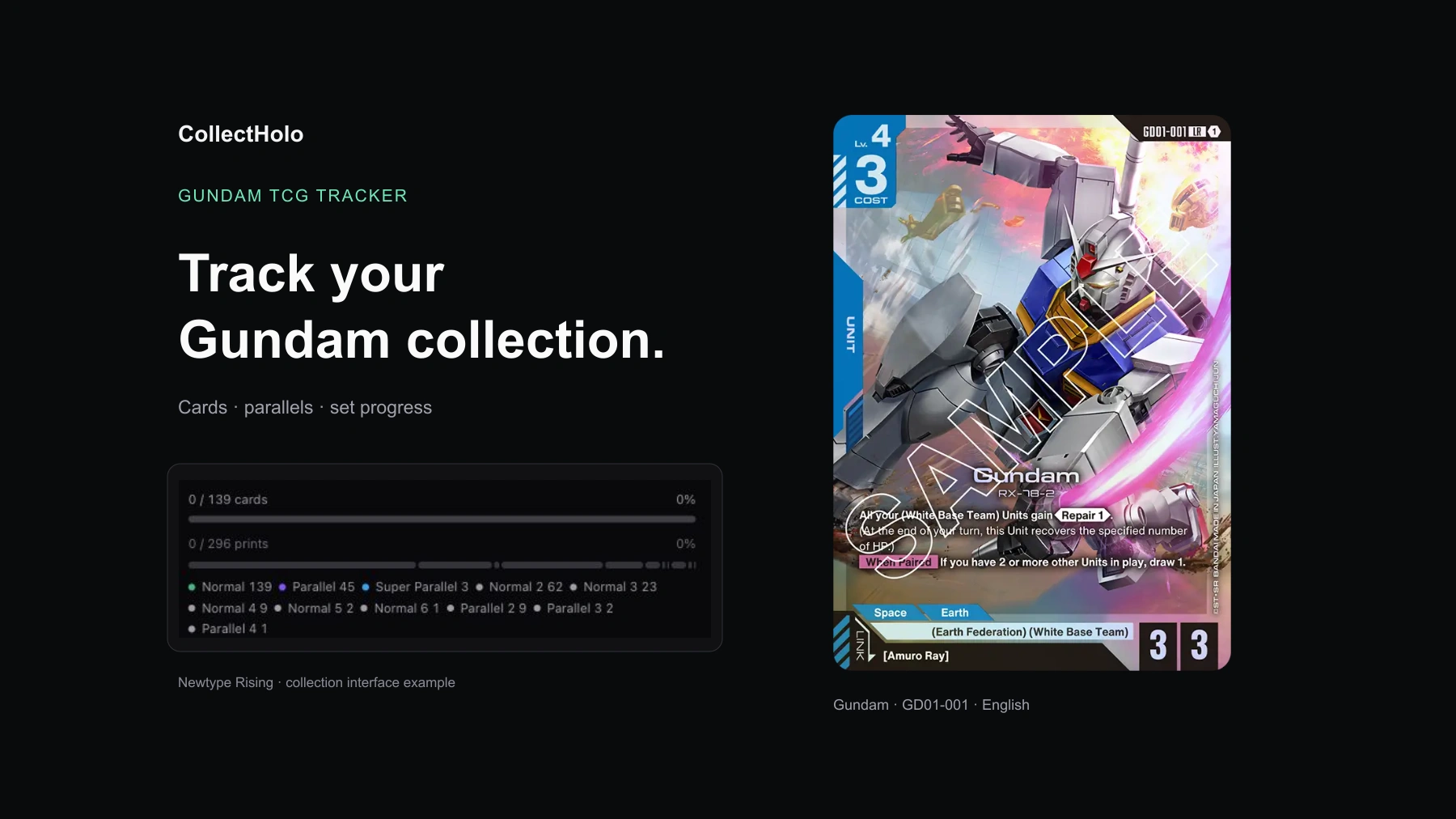
CollectHolo works as a Gundam TCG tracker for recording owned cards and printings, following set progress, keeping a wishlist and checking marketplace prices where available. Start in the Gundam card catalogue to find a particular card, or use the Gundam set directory to work through a release.
After opening a box, the useful questions are specific: which cards did you add, which printing did you pull, and which gaps are worth filling next? A record of card names alone leaves too much unresolved. The same Gundam card can have several collectible versions, and those versions need their own place in your collection.
Decide what completing a Gundam set means to you
You might want one copy of each card number, a collection of favourite mobile suits, or every printing you can find. Choose that goal before treating a completion percentage as your shopping list.
CollectHolo’s set pages show card progress and printing progress separately. Open Newtype Rising, for example, and the checklist distinguishes Normal, Parallel and Super Parallel entries, alongside other catalogued printings. A card number and a physical printing answer different questions about what you own.
The checklist may also show later printings or promotional versions of an earlier card. Check the printing’s label and origin when deciding what belongs in your binder; do not assume every entry could have come from that set’s original booster packs.
Find the card, then match the printing
Use the Gundam filter in Explore and choose Cards when you want singles. Narrow the results by set, rarity or price range, or search for the card you are holding. For a collection session after opening packs, starting with the set page is often easier than searching for every name individually.
Take Gundam GD01-001. Bandai’s official card reference identifies it as Gundam from Newtype Rising. In CollectHolo, its printing selector separates the normal version from Parallel and Super Parallel options.
Match the artwork and finish of your physical card to the selected entry, then check its language. The name “Gundam” and the number GD01-001 get you to the right card; the printing selector gets you to the version you need to record.
Add your cards with useful purchase details
Sign into your CollectHolo account, open Add to Portfolio from a card page, and check:
Destination: choose the portfolio that should hold the card.
Identity: confirm the printing, available card language, and raw or graded status.
Condition and quantity: record the copies you actually own.
Purchase details: enter what you paid, the date and currency, with shipping or notes where useful.
A box-opening session and a singles purchase do not have to produce the same kind of record. You can log the cards you pulled without inventing an individual purchase price for each one. When you buy a specific parallel later, recording that purchase gives you a clearer history of the collection.
For more detail on organising holdings and costs, see the CollectHolo portfolio guide. Collection limits and advanced tools depend on your plan; additional purchase costs such as grading fees or customs are PRO features.
Use missing cards to plan the next addition
Return to the set checklist after logging your cards. Its All cards, Collected and Missing views help you move from the full catalogue to the entries relevant to your collection.
Use the wishlist for cards you want to revisit. That keeps an unowned parallel separate from an owned normal copy and gives you a focused list for the next shop visit or trade. Before adding more copies, check both the card number and the printing you already logged.
You can use the same approach for a different release, such as Dual Impact, without losing the distinction between completing a set and collecting every version of its cards.
Read Gundam card prices in context
Card pages show the selected printing’s available marketplace data, with price-history and condition controls. Use the source, language, condition and dates shown on the page when comparing entries. Coverage and history vary, so some printings will have less information than others.
An available asking price is a reference for what sellers are requesting. It does not establish what your copy would sell for, and a missing price does not make a card worthless. This matters especially when comparing an ordinary copy with a scarce parallel or event printing.
Explore also separates Cards and Sealed products. If you collect unopened boxes or starter decks, keep those holdings separate from the singles inside them. An opened product and the cards you pulled should not both remain recorded as owned sealed inventory.
Start with one set
The easiest first session is a single binder page or stack of pulls: open the relevant Gundam set, identify each printing, enter your quantities, and review the missing entries. Once that record is accurate, expand to the rest of your collection.
Explore Gundam cards in CollectHolo or choose a Gundam set to track.
This walkthrough reflects the browser interface checked on 9 November 2026. CollectHolo is an independent collection tracker and is not affiliated with or endorsed by Bandai or the Gundam rights holders.